Team
Manage organization members and shared developer policy
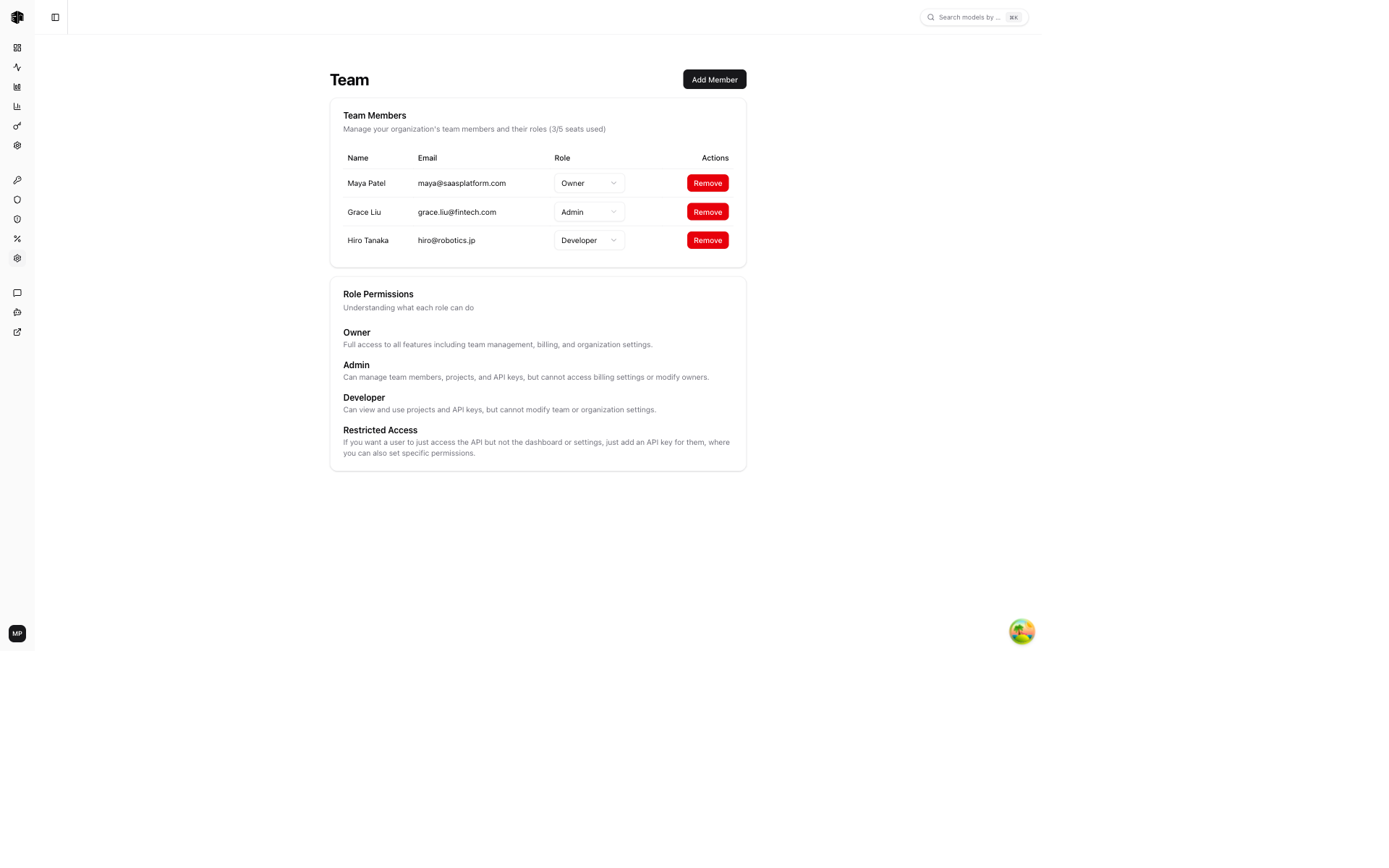
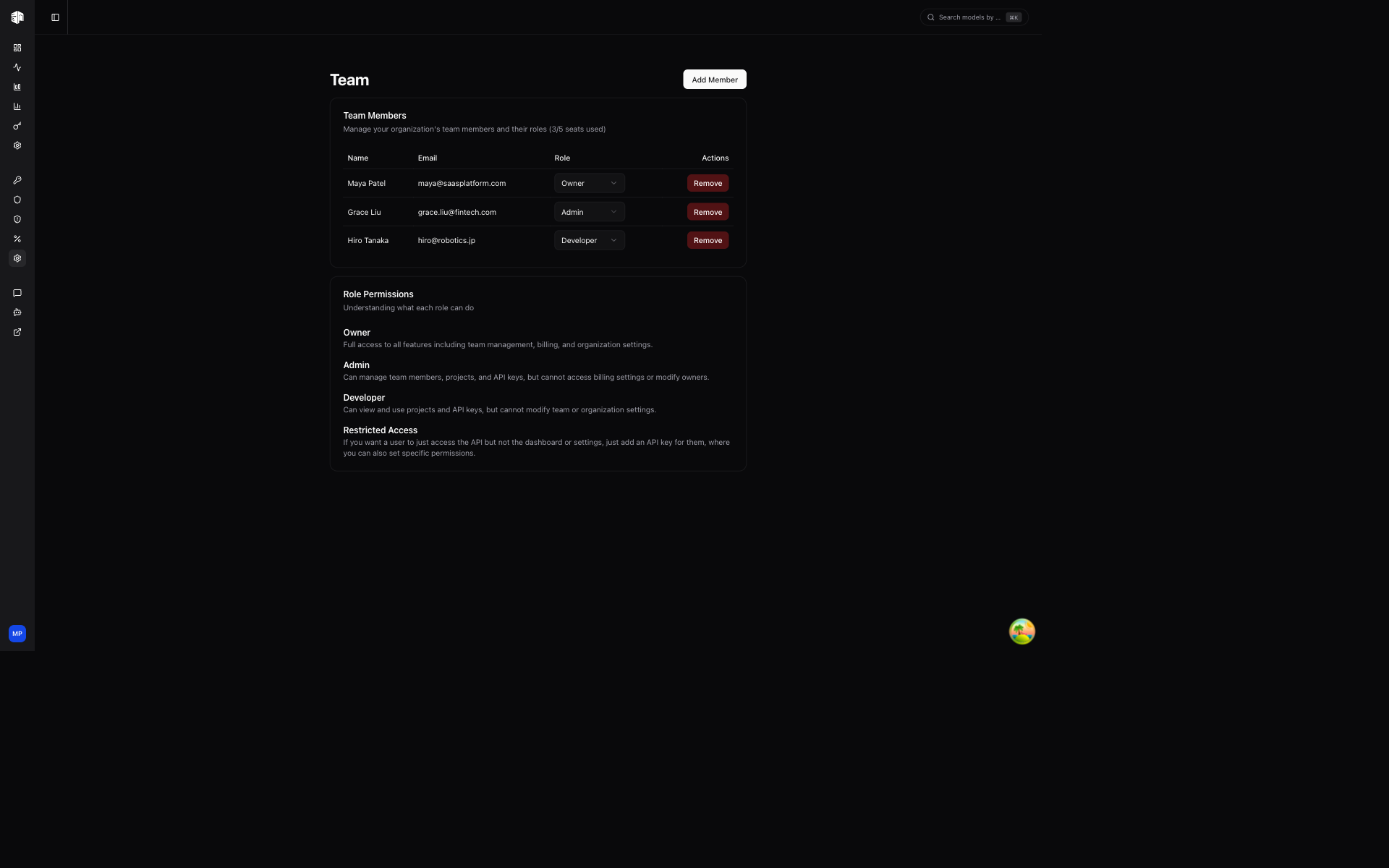
The Team page has two views: Members for organization membership and personal controls, and Teams for policy shared by groups of developers.
Members
The Members view shows each person's role, assigned organization team, projects, and limits. Enterprise owners and admins can also compare cost, tokens, requests, and API-key counts for the selected period.
Each row has actions to:
- Open the member's details and usage
- Change their role and project access
- Set a personal API-key or spending budget
- Add personal IAM rules
- Remove them from the organization
Personal IAM rules apply to every key created by that member. A key can narrow those rules, but cannot expand access beyond them. See Member-level IAM rules for rule behavior and Member IAM rules for the management API.
Roles
| Role | Permissions |
|---|---|
| Owner | Full access, including team management, billing, and organization settings |
| Admin | Can manage members, projects, and API keys, but cannot change billing controls or modify owners |
| Project admin | Manages settings, routing, guardrails, keys, and usage in assigned projects; cannot administer the organization |
| Developer | Creates and manages their own API keys and views their own usage in assigned projects |
Invite a member
Click Add Member, enter an email address, and choose a role. Project admins and developers require Enterprise access and at least one project grant. The invitation remains under Pending Invitations until it is accepted or revoked.
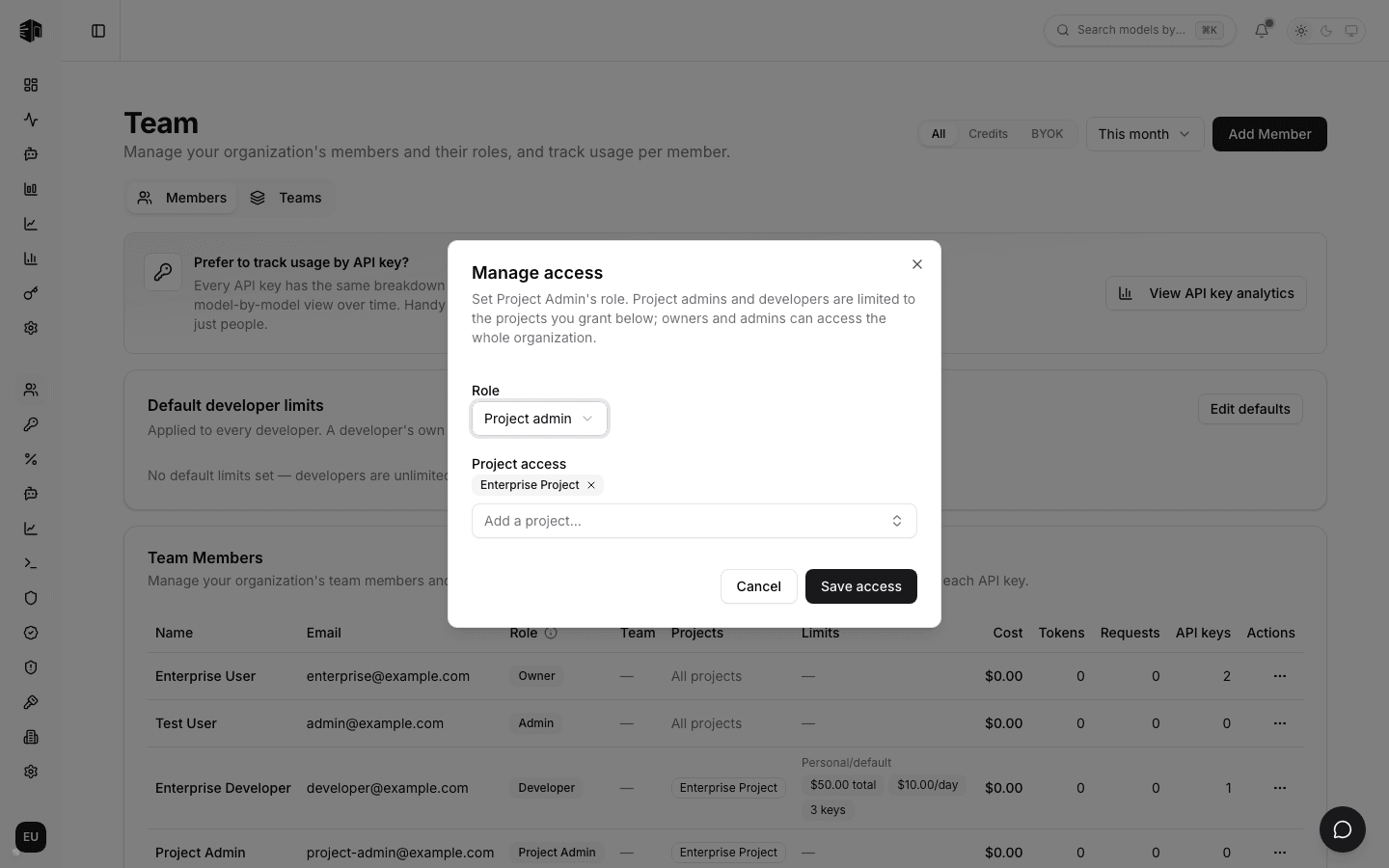
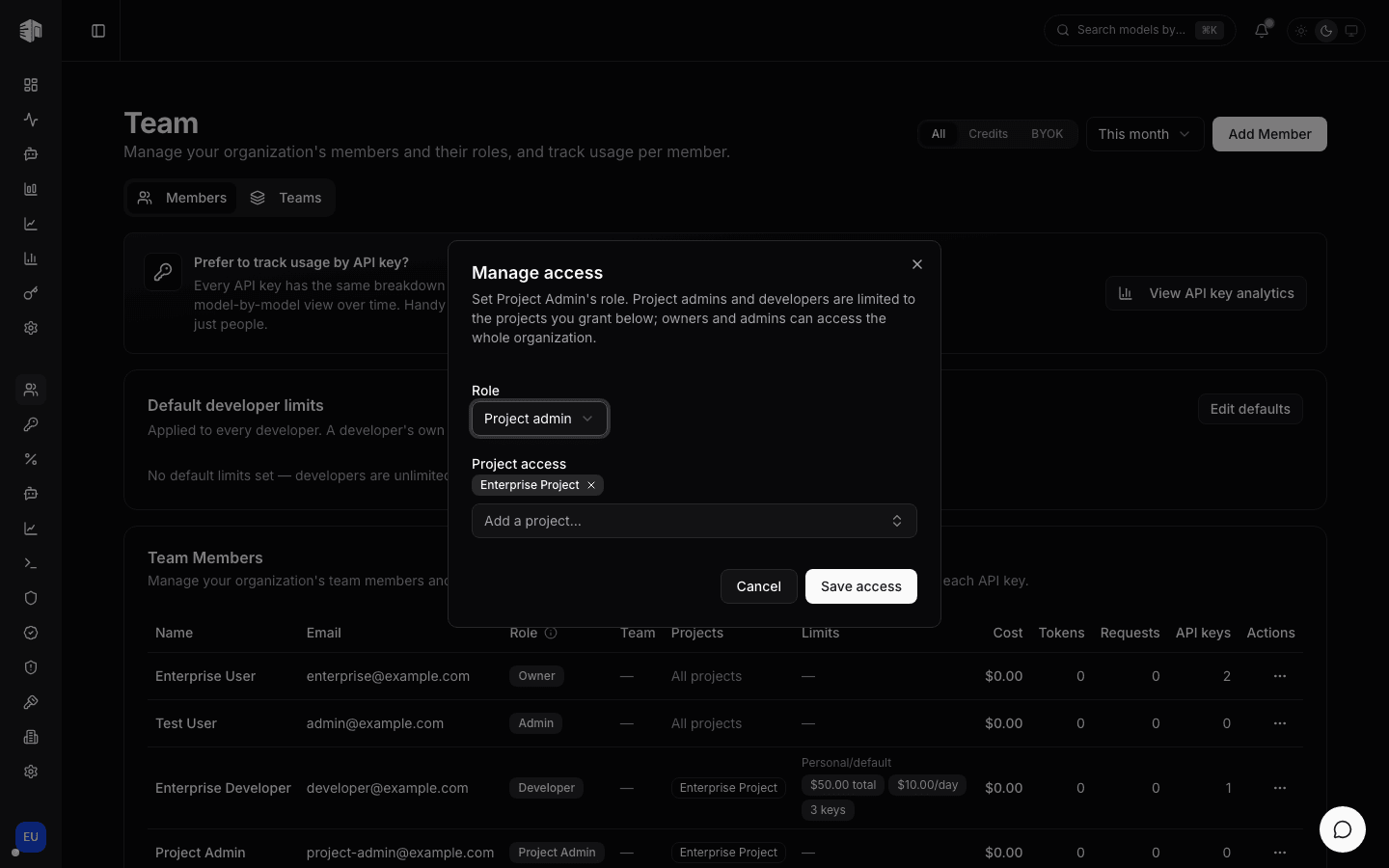
Use Project admin for someone who needs to manage a project's settings and all its API keys and usage. Use Manage access on an existing member to change their role or replace their project grants. Organization settings, billing controls, provider keys, and membership remain restricted to organization administrators. See Project access for the complete permission model.
Pending invitations reserve a seat. The Members card shows the current seat count and plan limit, and Add Member is disabled when the limit is reached.
Organization teams
Open Teams to group developers under a shared project, IAM, and budget policy. One developer can belong to one organization team; other roles cannot be assigned. Promoting a Developer to Project admin clears their team assignment.
Creating teams and changing team policy requires the Enterprise plan. If Enterprise access ends, existing policy remains enforced and can still be reviewed. Developers can be unassigned, and empty teams can be deleted.
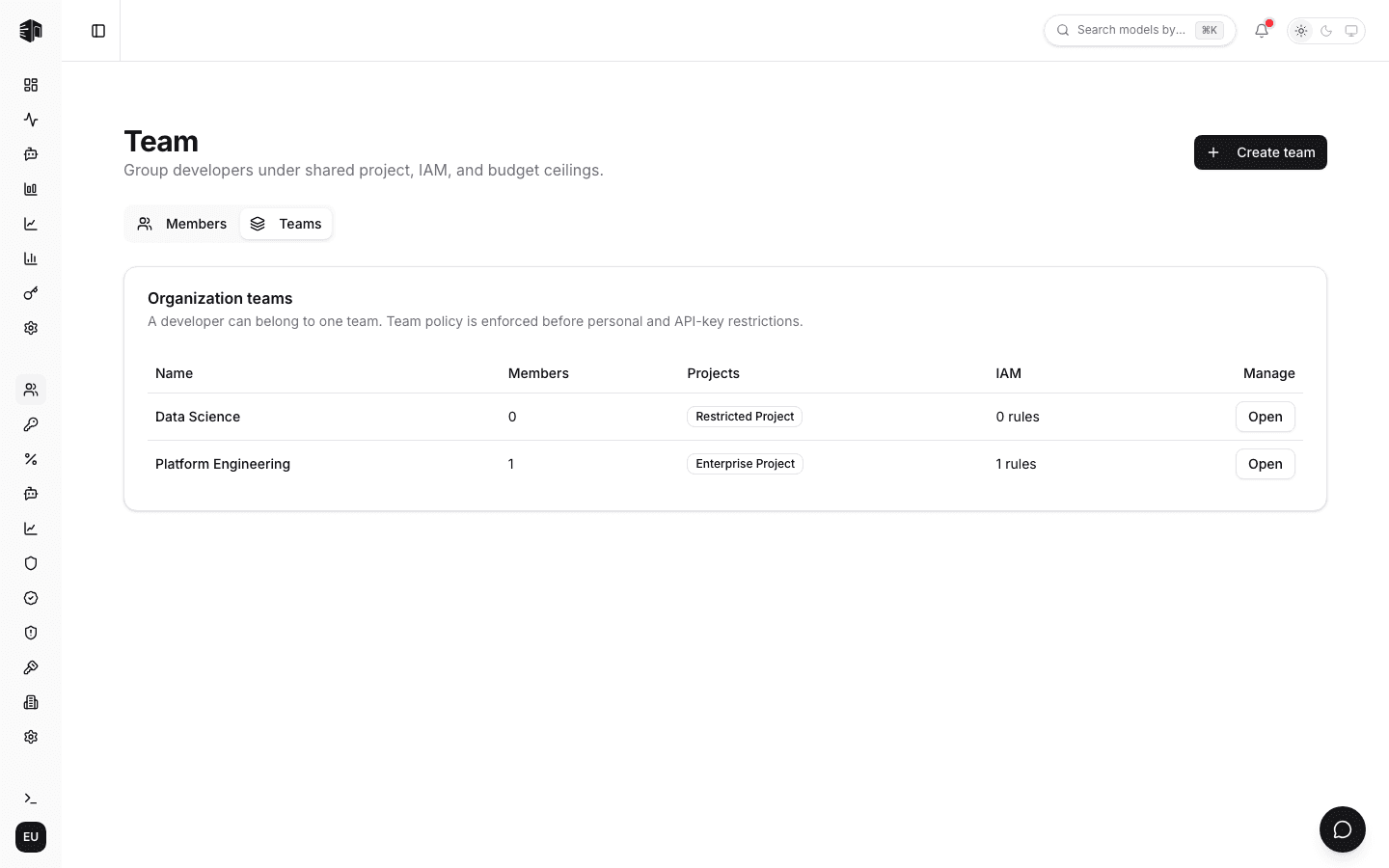
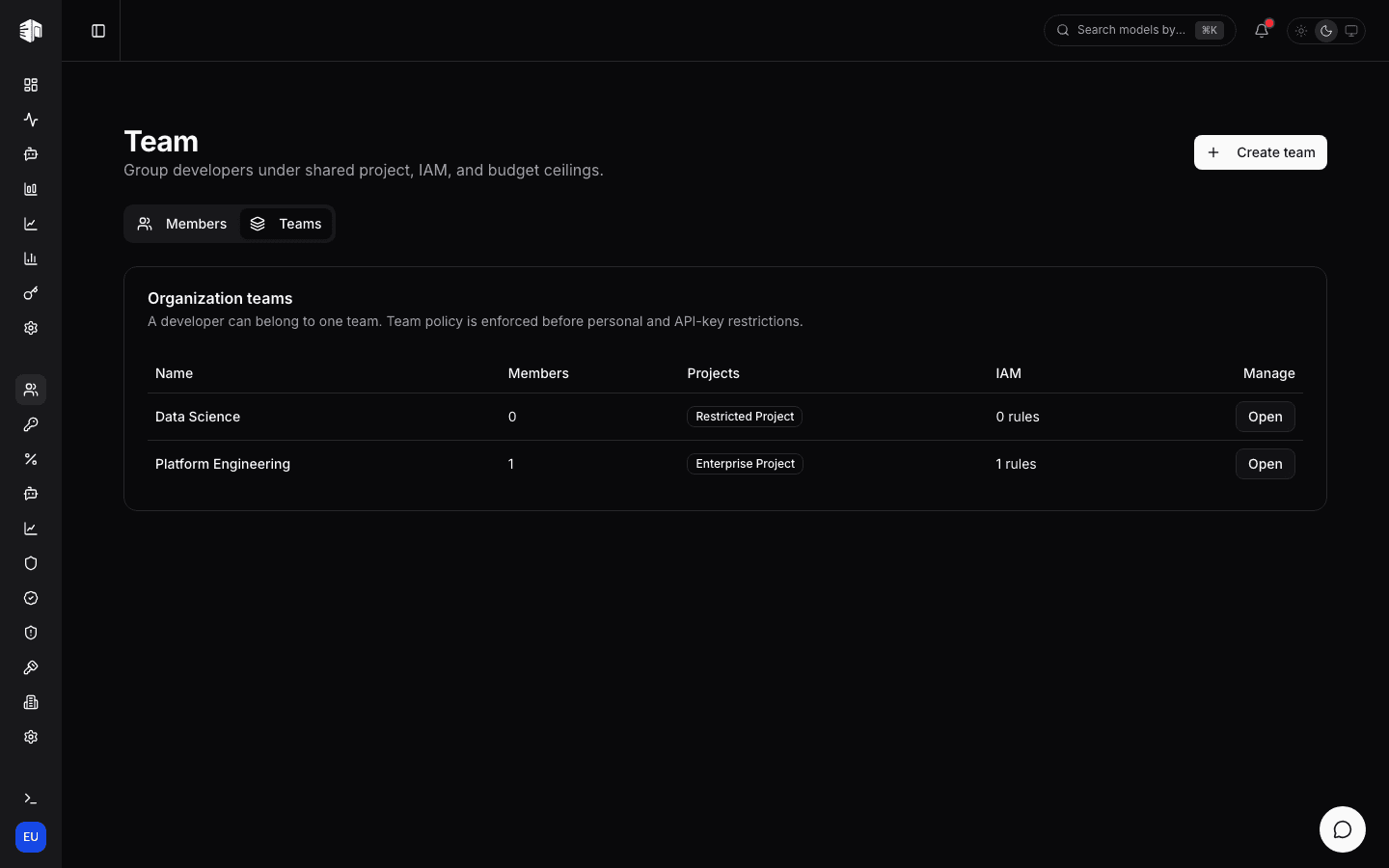
Click Create team, give it a unique name, then click Open to configure it. The list shows the number of developers, project ceiling, and IAM rule count for every team.
Configure team policy
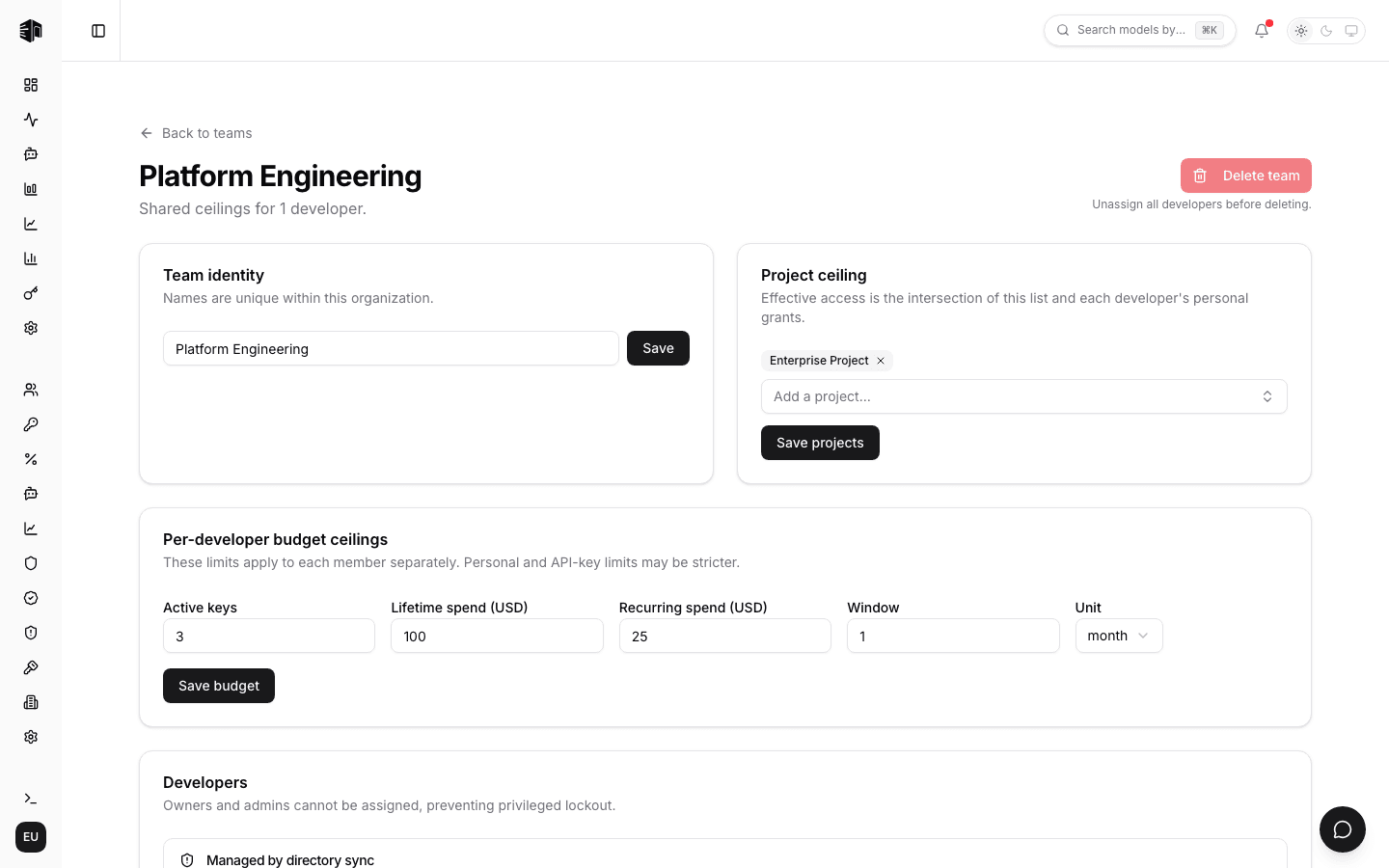
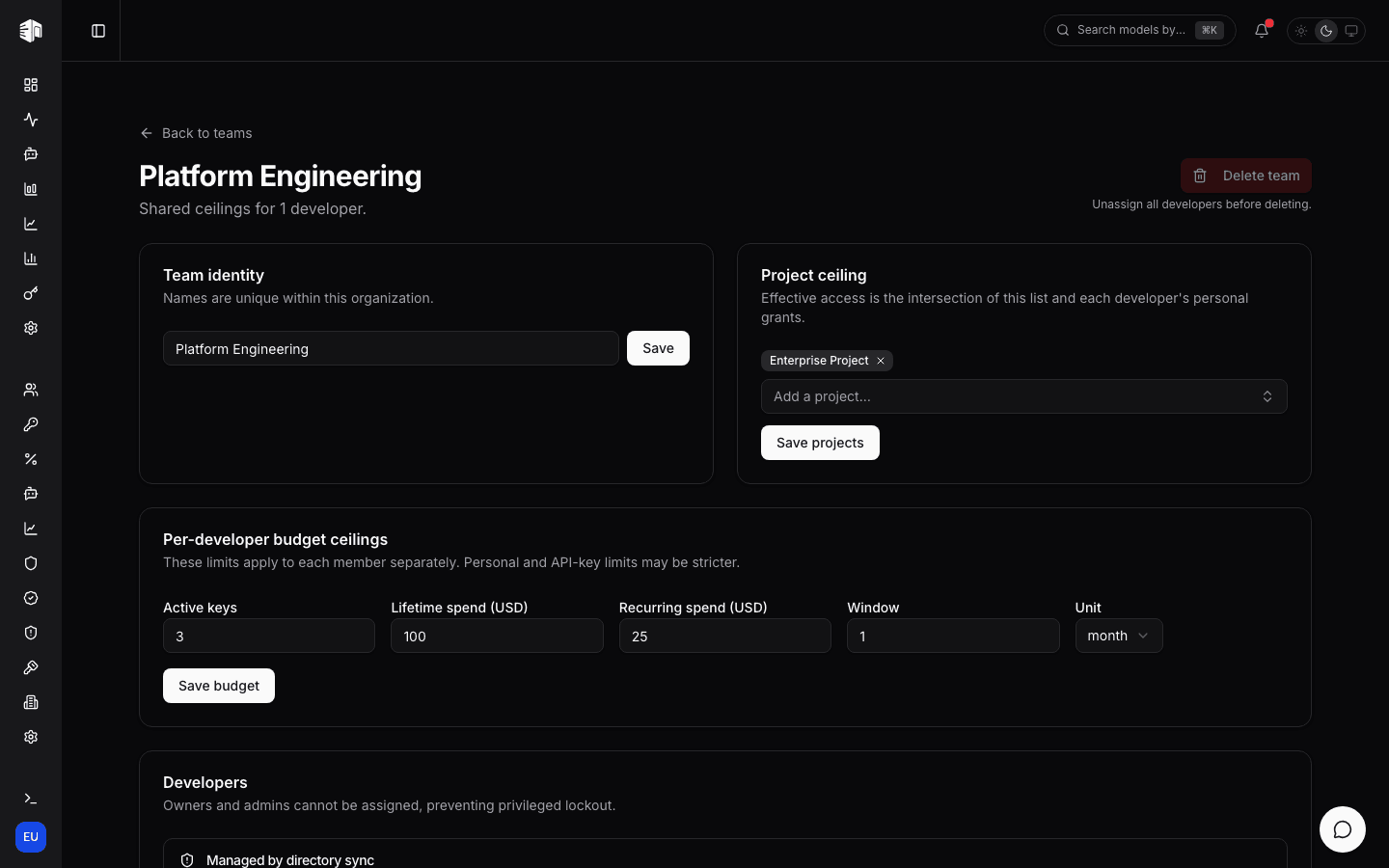
| Control | Behavior |
|---|---|
| Team identity | Names the team and can mark it as the organization's default team. Names are unique within the organization. |
| Project ceiling | Effective access is the intersection of the team list and each developer's personal grants. With no projects selected, user keys return 403. |
| Per-developer budget ceilings | Caps each developer's active keys, lifetime spend, and recurring spend. Personal and API-key limits may be stricter. |
| Developers | Assigns, moves, or unassigns Developers. A move replaces the previous team's policy immediately. |
| IAM policy | Adds shared model, provider, pricing, or IP rules. Member and API-key rules run afterward and can only narrow access. |
Unassigning a developer restores their personal project, IAM, and budget settings. Unassign every developer before deleting a team.
Default team
One team per organization can be marked as the default. Developers who join — by invite, direct add, SSO domain auto-join, or SCIM provisioning — are assigned to it automatically unless a SCIM group mapping places them elsewhere; explicit manual assignments always win. When enabling the default you can optionally assign every developer currently without a team in one step. Moving or removing the flag only changes future joins: current members keep their team.
Sync groups from Microsoft Entra ID
Microsoft Entra groups reach LLM Gateway through SCIM group provisioning:
- Create or choose a security group in Entra and assign its users.
- In the LLM Gateway enterprise application, configure SCIM provisioning and include that group in the provisioning scope.
- In LLM Gateway, open SSO, then map the exact Entra group name to an existing organization team.
- When Entra sends the group and membership update, matching Developers are assigned to that team. Removing a user from the Entra group removes the synced assignment.
The team detail page identifies assignments managed by directory sync. Manually unassigning a synced developer lasts only until the next SCIM update; an explicit manual assignment to another team is preserved. If several mapped groups apply, the first group name alphabetically wins. Only developers inherit team policy.
Follow Configure Microsoft Entra ID for the complete Entra application and SCIM setup. For other identity providers, see Single Sign-On.
Team, member, IAM, budget, and directory-sync changes are recorded in Audit Logs.
How is this guide?
Last updated on