Invoices
Download invoices and credit notes for every payment
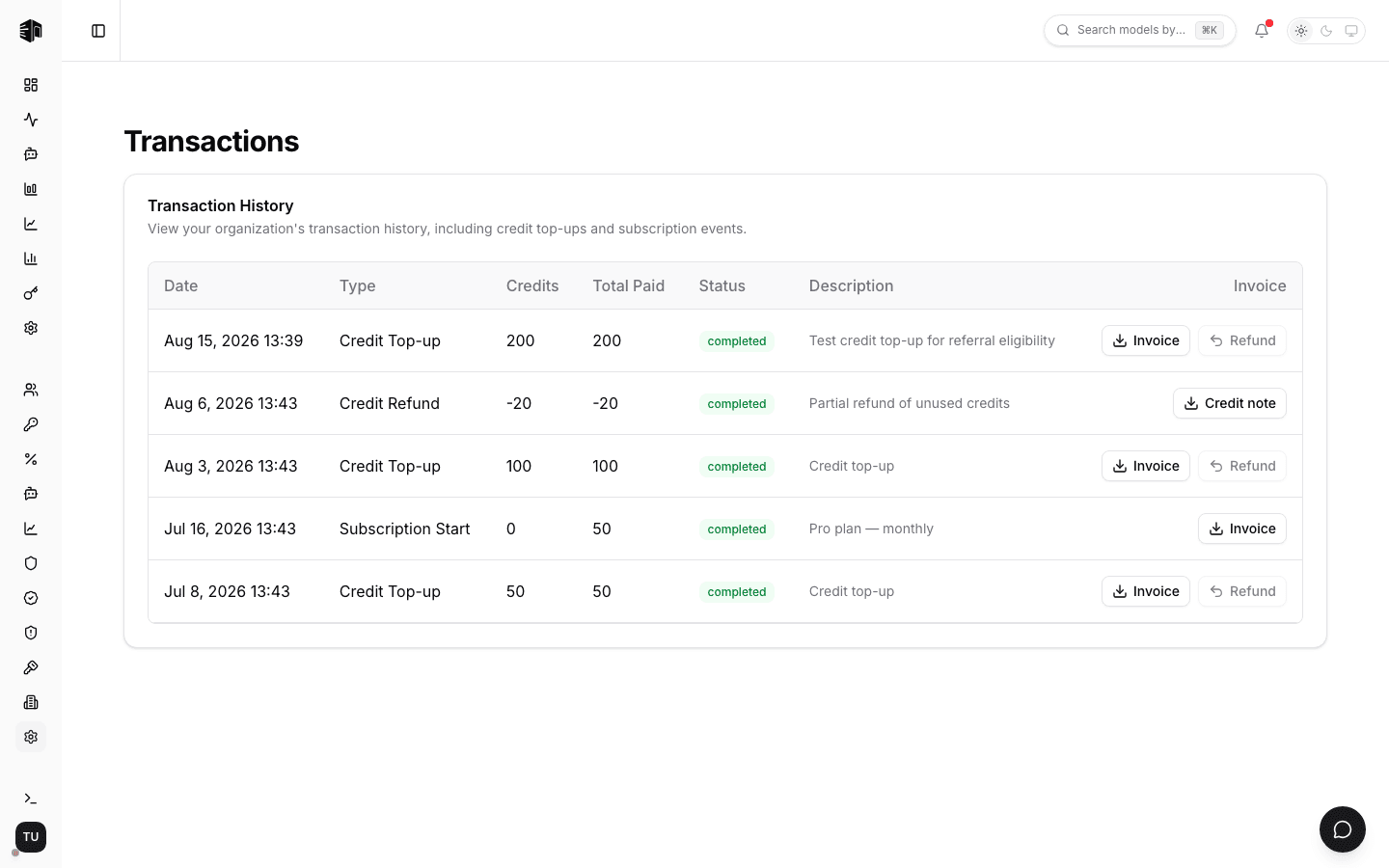
Every completed payment gets a PDF invoice, and every refund a credit note. The invoice is emailed to your billing address when the payment succeeds, and both can be downloaded at any time from Transactions in your organization settings.
This page covers your organization's payments. Two other payers are receipted directly instead: Payments SDK end-users, who are emailed a receipt branded with your product name, and Airside carriers paying the one-time listing fee.
Downloading an invoice
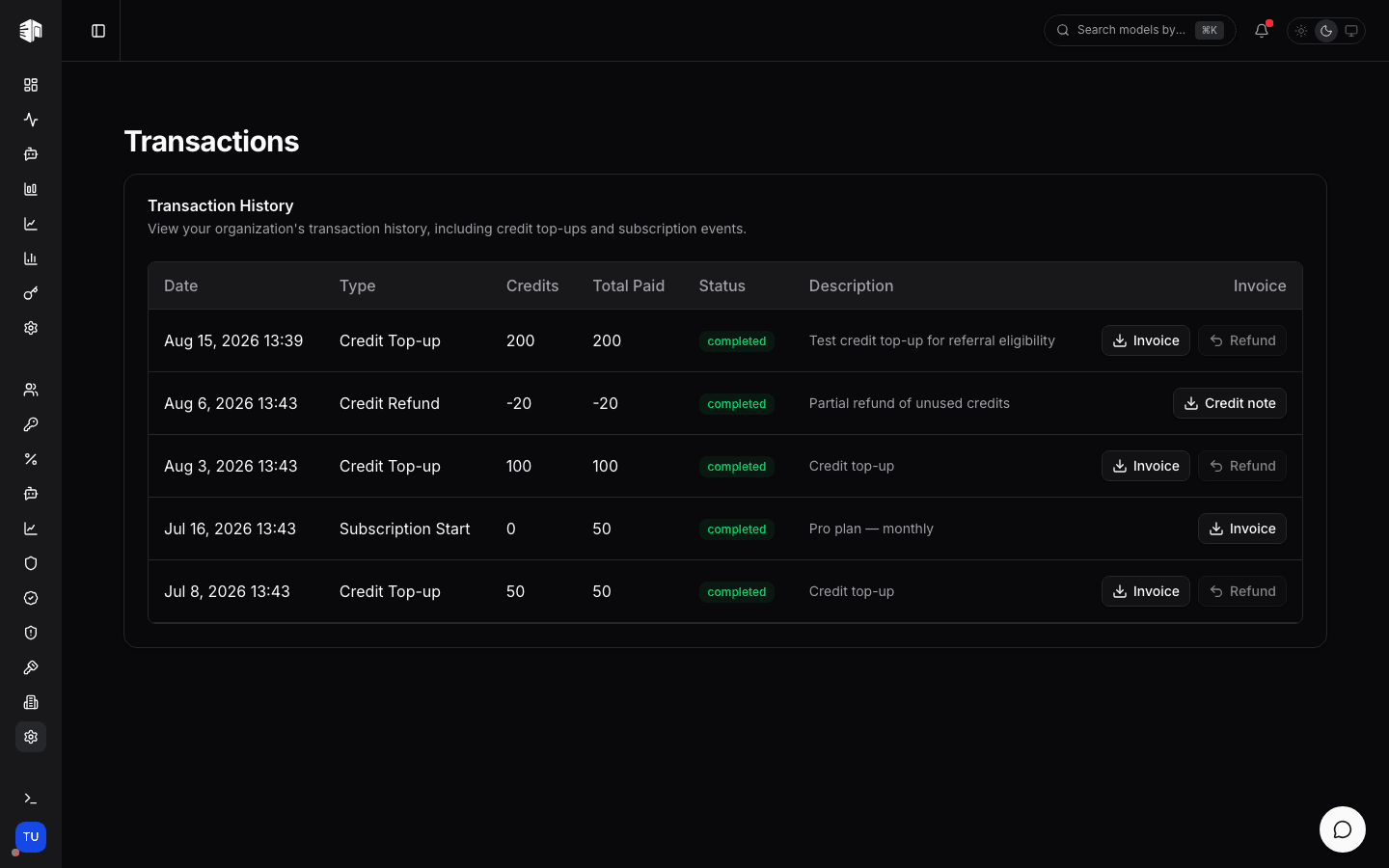
- Open Settings → Transactions in the dashboard.
- Find the payment in the list.
- Click Invoice on that row — the PDF downloads as
invoice-<transaction-id>.pdf.
Refunds produce a Credit note instead of an invoice, downloaded the same way. It shows the original purchase amount, the percentage refunded, and the refunded total as a negative line.
Only completed payments with a positive amount have a document. Plan cancellations, plan endings, and free credit gifts have nothing to invoice, so those rows have no download button.
The invoice number is the transaction ID, so it matches the row you downloaded it from.
Putting company details on the invoice
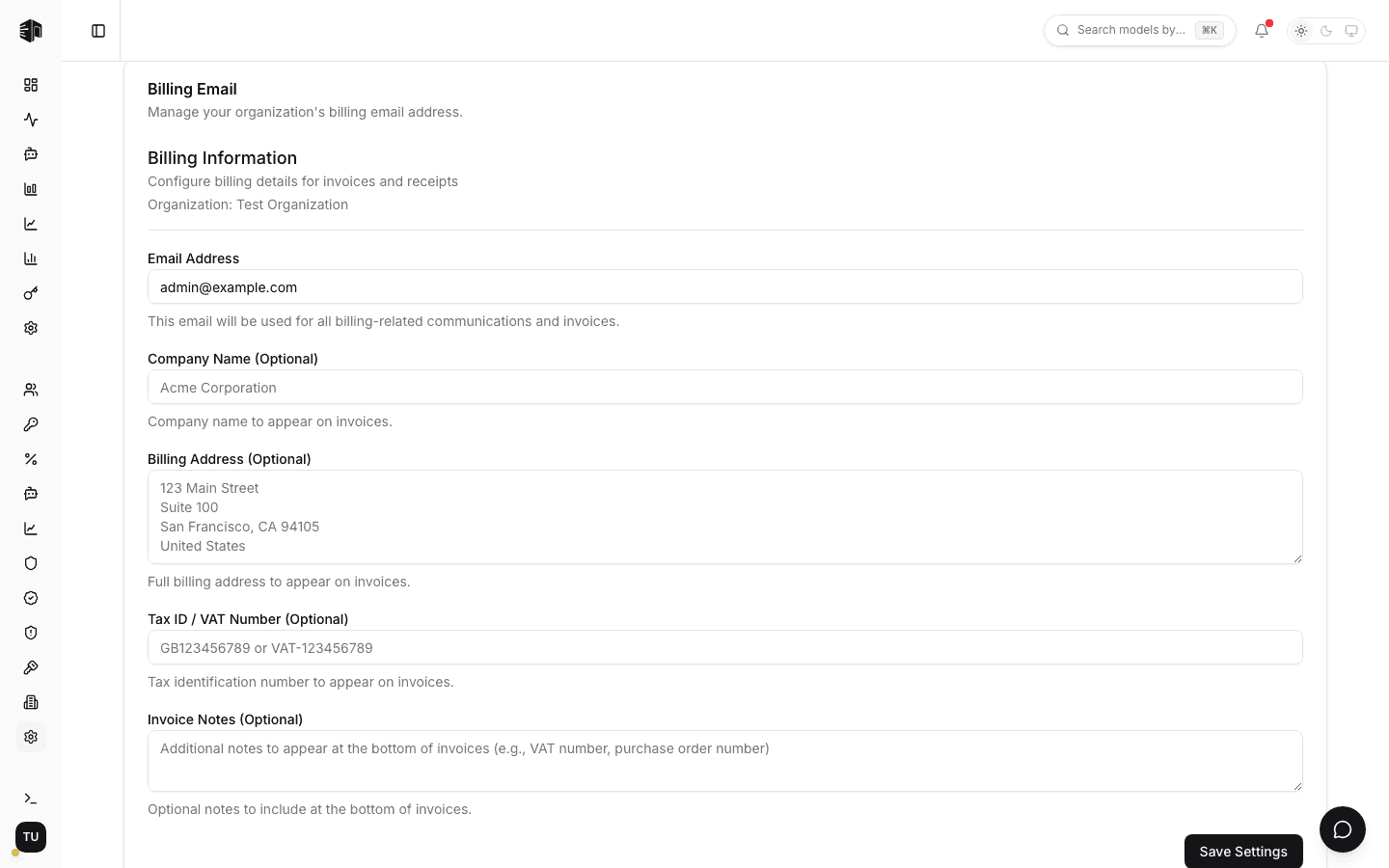
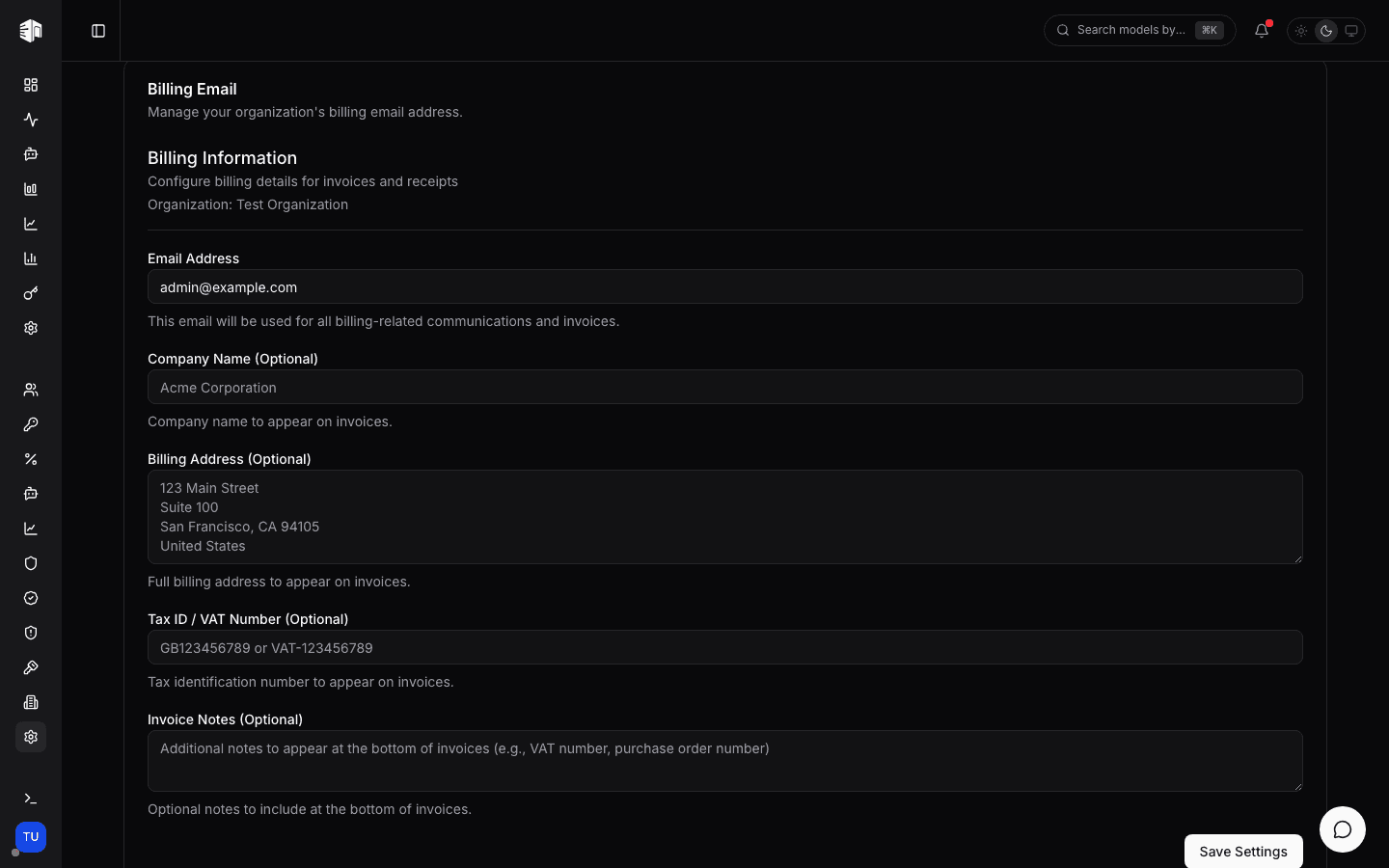
Company name, address, tax ID and invoice notes come from your organization's billing information, under Settings → Billing:
| Field | Appears on the invoice as |
|---|---|
| Email Address | The billing email address invoices are sent to |
| Company Name | The billed company |
| Billing Address | The billing address block |
| Tax ID / VAT Number | Your tax identification number |
| Invoice Notes | A free-text footer (e.g. a PO number) |
Fill these in before you pay. The emailed invoice is generated at payment time and keeps the details as they were then, while a download from Transactions is rendered fresh from your current details — so the two copies of one invoice number can differ after you edit this page. Treat the emailed PDF as the record of what was invoiced, and for a lasting change get the details right before the next payment.
DevPass invoices
DevPass subscriptions are billed on their own workspace. Open Billing in the DevPass dashboard and use the Billing history table — every charge, refund and plan change is listed there with its own download button in the Document column.
Related pages
- Transactions — the full payment and credit history
- Billing — credits, plans, and payment methods
How is this guide?
Last updated on