Projects
See usage and activity for every project, and edit or archive several at once
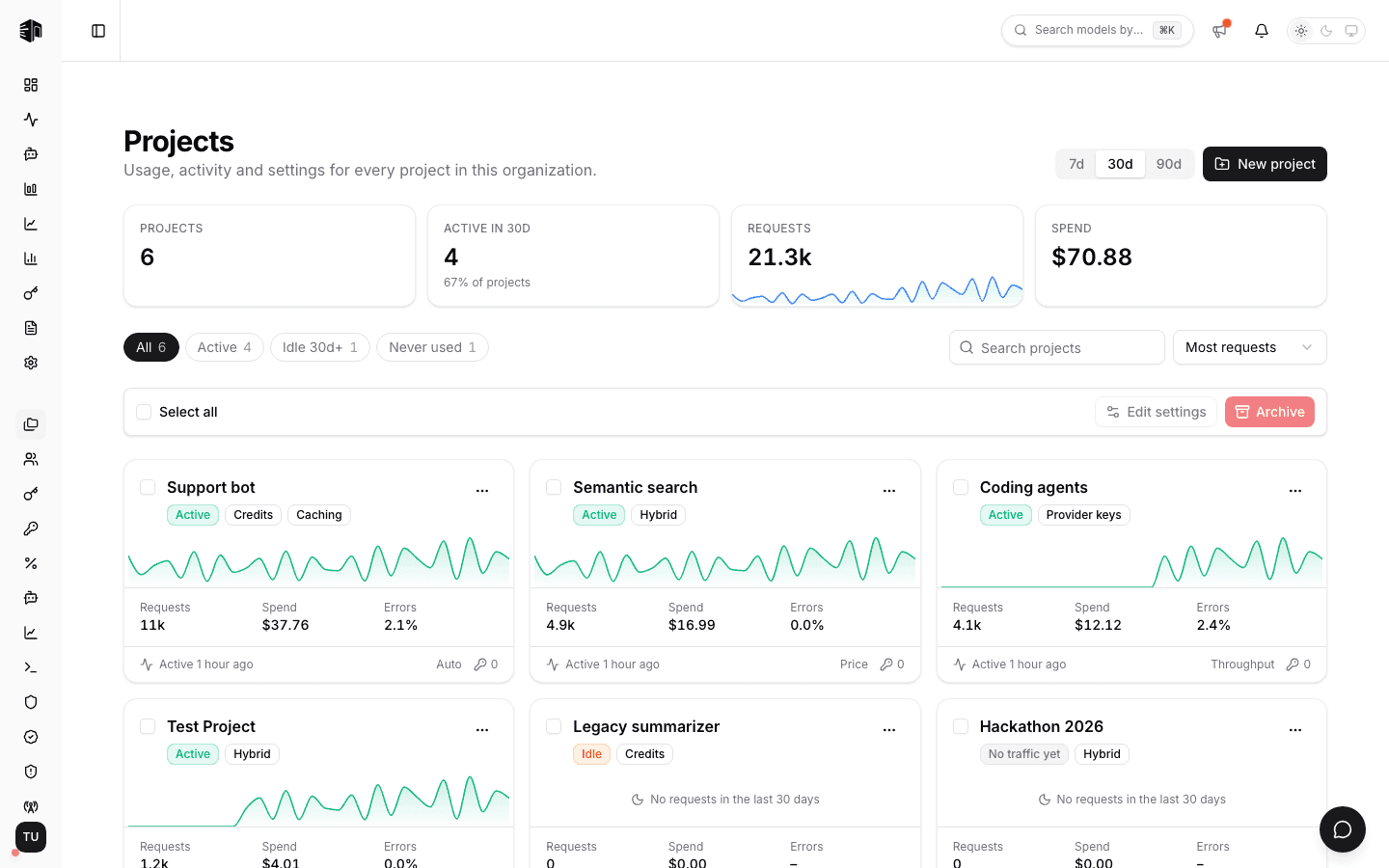
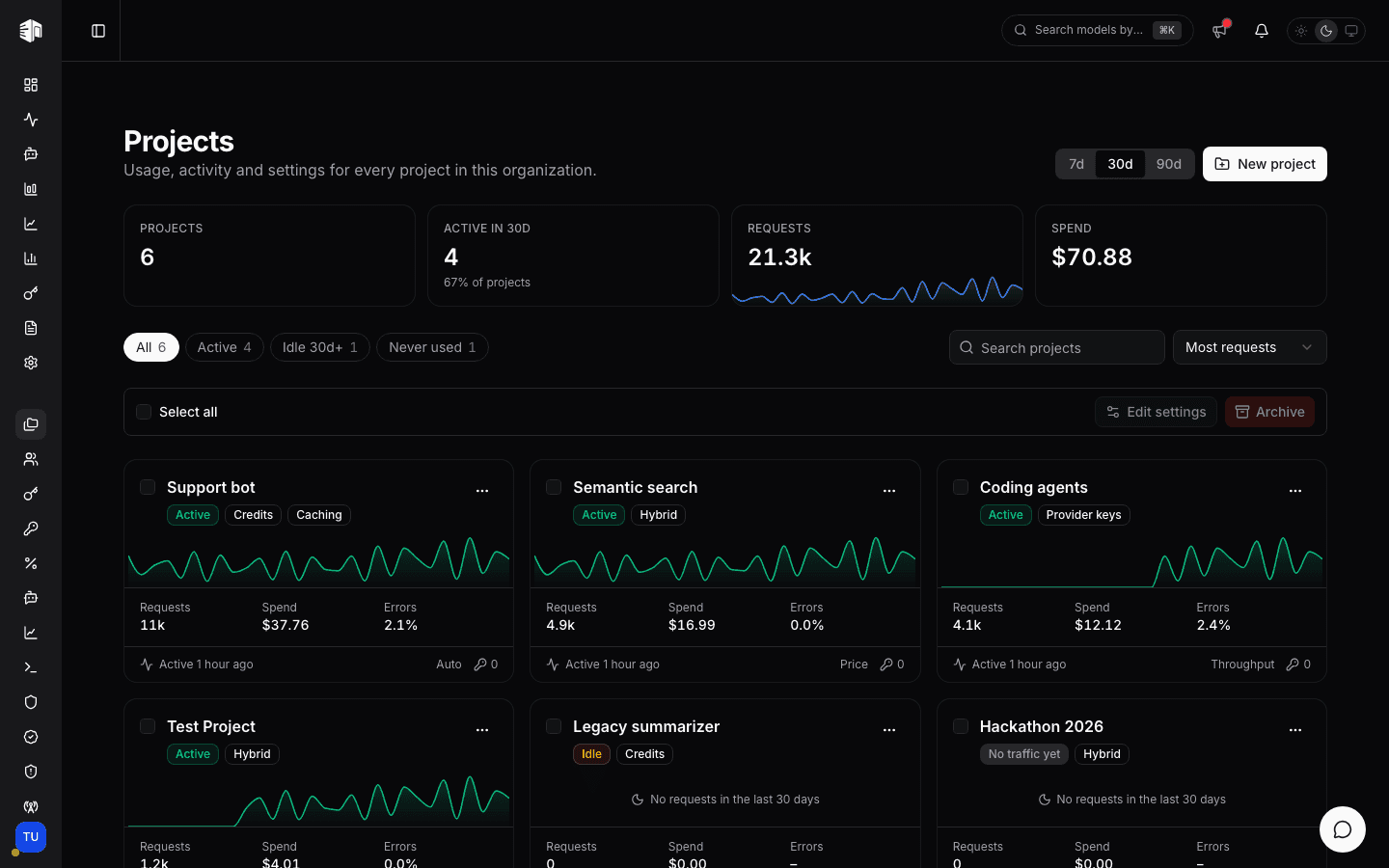
The Projects page lists every project in your organization as a card with its recent traffic, so you can see at a glance which projects are busy, which have gone quiet, and clean them up without opening each project's settings.
Open it from the organization section of the dashboard sidebar.
Summary
Pick a period of 7d, 30d, or 90d in the top right. The tiles above the cards cover that period:
| Tile | Description |
|---|---|
| Projects | Number of projects in the organization |
| Active in N d | Projects with at least one request in the period, and share |
| Requests | Requests across all projects, with a daily trend |
| Spend | Cost across all projects |
Project cards
Each card shows a daily request sparkline for the period and:
| Field | Description |
|---|---|
| Status | Active (requests in the period), Idle (none in the period, older traffic), or No traffic yet |
| Mode | Billing mode: Provider keys, Credits, or Hybrid |
| Caching | Shown when response caching is enabled |
| Requests | Requests in the period |
| Spend | Cost in the period |
| Errors | Share of requests that returned an error; highlighted at 5% or more |
| Last active | The most recent hour with traffic, at any time |
| Routing strategy | The project's default routing strategy |
| API keys | Number of API keys in the project |
The menu on each card opens the project dashboard, its API keys, or its settings, and lets you rename or archive the project.
Finding projects
- Filters: All, Active, Idle, and Never used, each with its count. Use Idle to find projects nobody has called during the period. For developers, status, filters and counts reflect only traffic from their own API keys, so a project used through a teammate's key can show as Idle or Never used.
- Search by project name or ID.
- Sort by most requests, highest spend, recently active, name, or newest.
Editing several projects
Tick the checkbox on each card, or Select all for the projects currently shown, then click Edit settings.
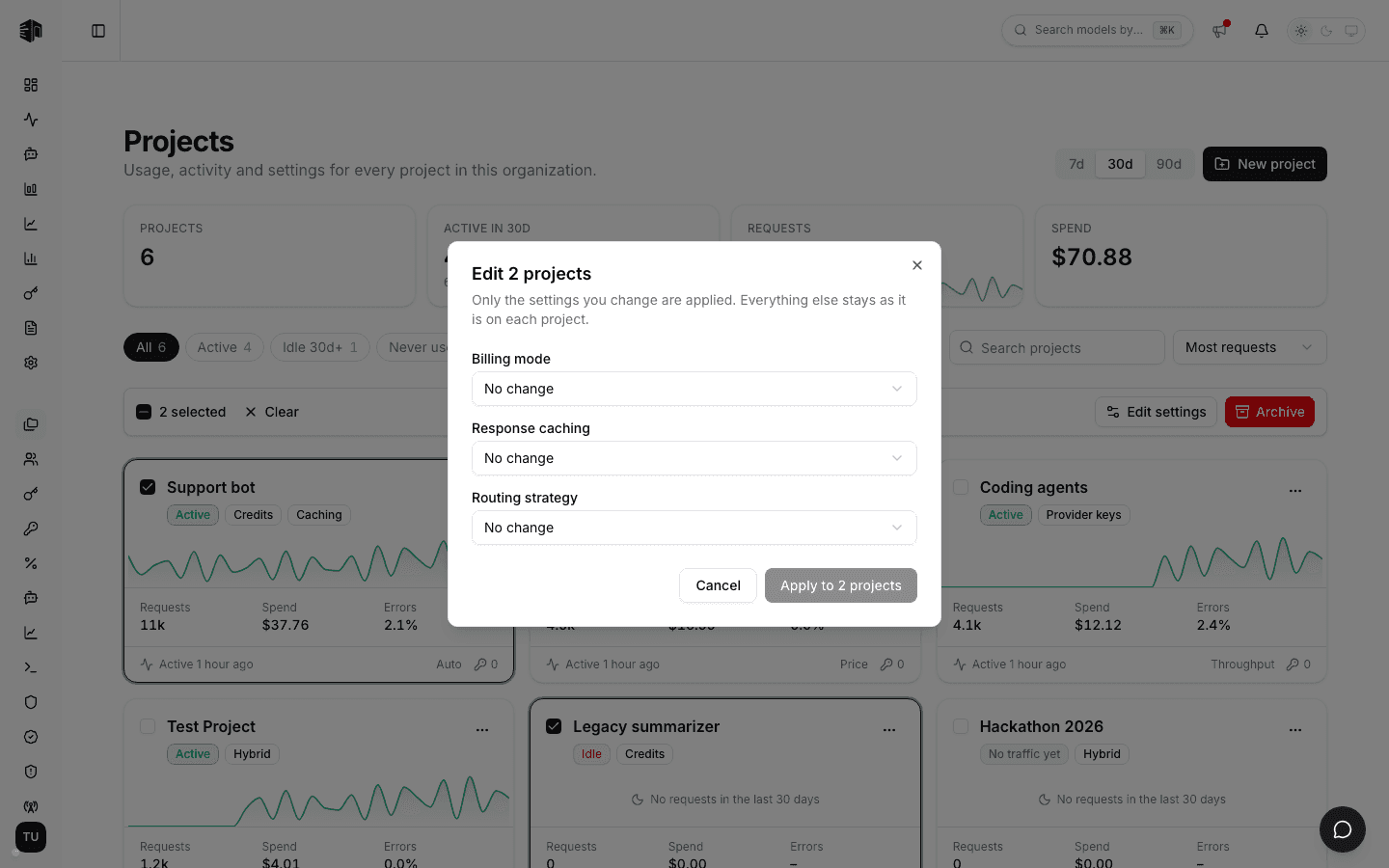
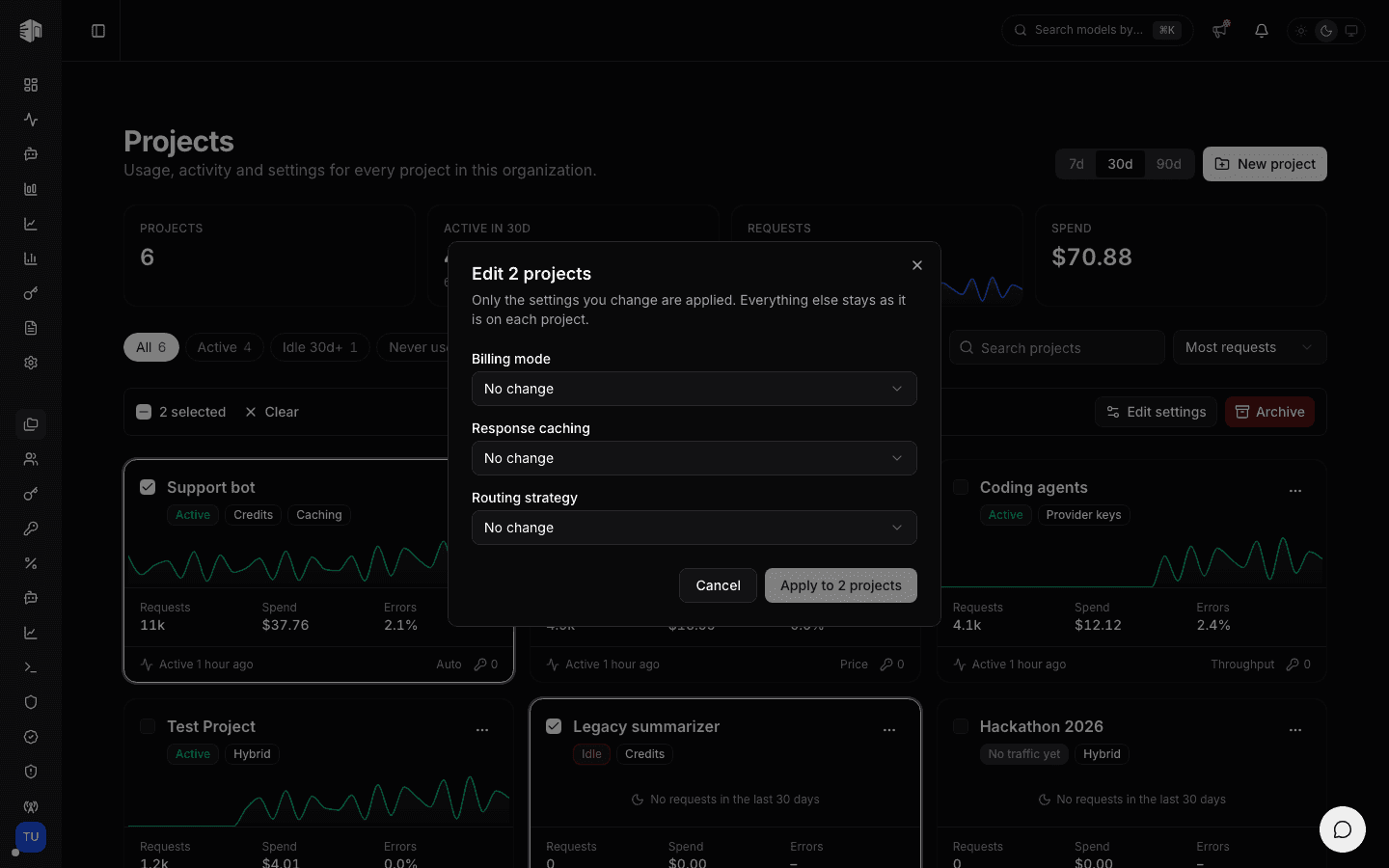
You can change Billing mode, Response caching, and Routing strategy. Only the fields you change are applied; each project keeps the rest of its settings. Projects that already match are skipped. The confirmation counts the projects that were updated, skipped, or could not be updated, grouped by reason. Each successful change is recorded in the Audit Logs; skipped and failed projects get no entry.
Response caching cannot be enabled while zero data retention is on for the organization.
Archiving projects
Select one or more projects and click Archive, or use Archive in a card's menu.
Archived projects disappear from the project selector and their API keys stop working. Historical usage and logs are kept. Archiving cannot be undone from the dashboard.
Permissions
| Role | Can do |
|---|---|
| Owner | View, edit, and archive projects |
| Admin | View and edit projects |
| Project admin | View and edit the projects they were granted |
| Developer | View the projects they were granted, with usage from their own API keys only |
How is this guide?
Last updated on