Decision Studio
Run decision models on text or images and get typed answers with probabilities
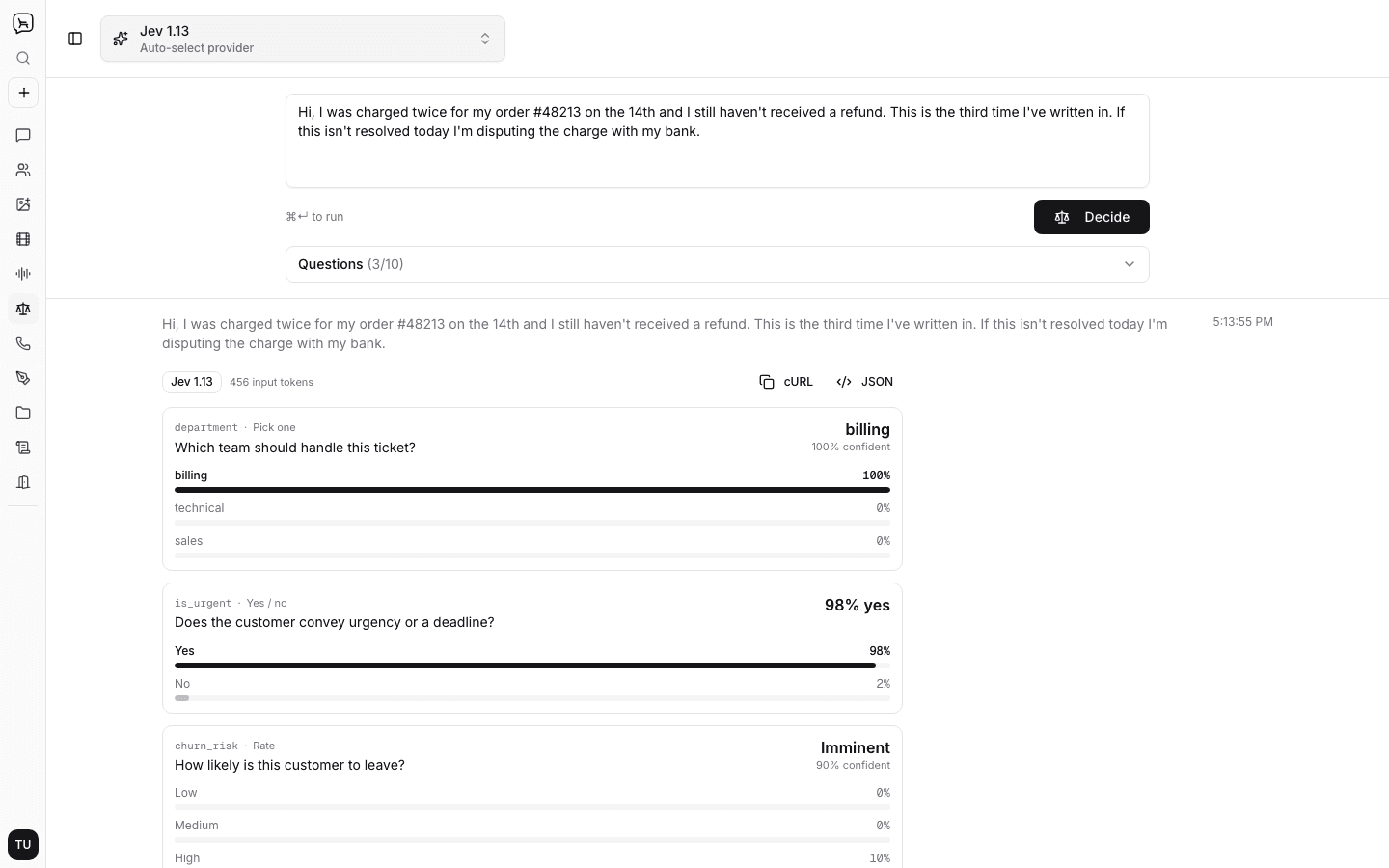
The Decision Studio runs decision models on anything you paste in. Instead of generated text, you define the questions and get back typed answers with probabilities: whether a condition holds, which option fits best, or where something lands on a scale. It is the quickest way to try a decision model before wiring up the /v1/decisions endpoint.
Model Selection
The dropdown lists every decision model in the catalogue, newest first, with its input price. Decision models are billed on input tokens only (the input plus every question), so there is no output price to compare.
Running a Decision
- Select a decision model
- Paste the text to decide on: a support ticket, a comment, a lead, a review. Models with image input also accept up to 4 pasted, dropped, or picked images, which are resized to 1536px before they are sent, and can run on images alone
- Add up to 10 questions, or pick Load an example to start from a preset
- Click Decide (or press ⌘↵, Ctrl+↵ on Windows and Linux)
- Each answer appears as a card with the winning value and a probability bar per option
Question Types
| Type | Ask | You define | Answer |
|---|---|---|---|
| Yes / no | Whether a condition is true | Instructions | Probability that it is true |
| Pick one | One option from a set | 2 to 12 options, descriptions optional | The chosen option and a probability each |
| Rate | A rating across ordered levels | 2 to 10 levels, lowest first | The most likely level and a weighted score |
The option and level counts are the studio's limits; the API itself accepts up to 255 options. Every question takes an optional name (is_urgent, department) that is echoed back in the answer, which is what your code would branch on. Leave it blank and the studio fills in q1, q2, and so on.
Reading the Results
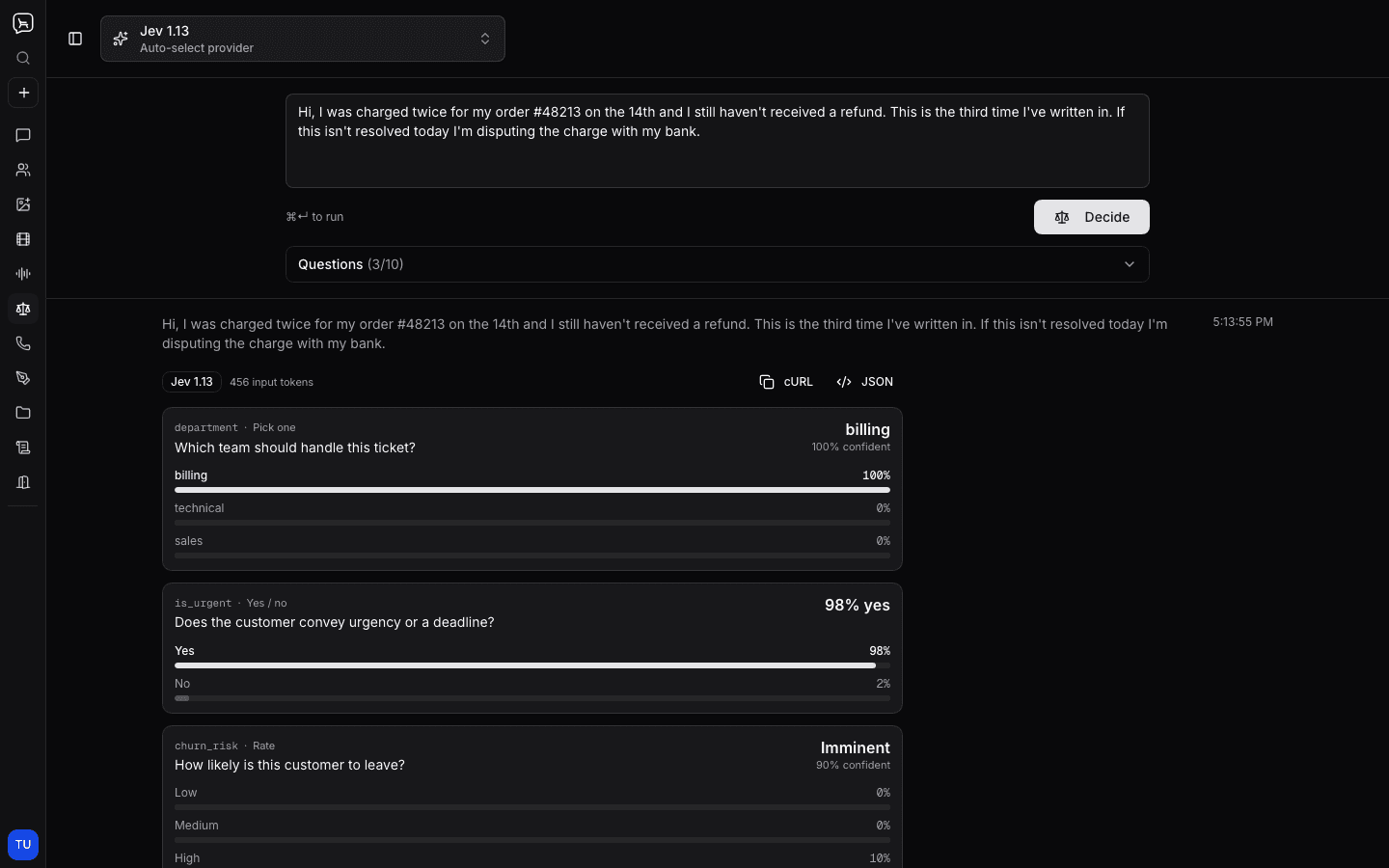
Each answer card shows the value a program would act on in bold, then a bar per option or level with its probability. Choice and rating answers also show the model's confidence. A question the model declines comes back as Refused while the others are still answered.
Use cURL on a result to copy the run as a /v1/decisions request (attached images are replaced by a placeholder data URL), or JSON to see the raw answers exactly as the API returns them.
Comparison Mode
Enable comparison mode to run the same input and questions on up to three decision models at once and see their probabilities side by side. Images are only offered when every selected model accepts them.
History
Runs are saved to your decision history with their input, questions, and answers. Opening a past run loads it back into the editor so you can tweak a question or try another model. Rename a run from its menu; the evaluated input itself never changes.
A text run works on the API with any decision model; a run with images needs a
model that accepts image input, such as gpt-6-luna-decisions. See the
Decisions feature page for the request and response
schema and the SDK examples.
How is this guide?
Last updated on